
Do you share your computer or laptop with your other family members or friends? If yes, then you are risking your private data from unauthorized access or your data may get deleted by mistake. I am sure that you don't want other peoples to peep into your confidential things, right? I don't like either. Therefore,
folder protection tool is crucial to keep your data safe.
Here I have highlighted a score of folder protection applications that works on
Windows platform PC and the best thing about these tools are that they are absolutely
FREE!!!
1. Folder Protection
Folder Protection is a powerful and easy-to-use program for encrypting and protecting your data. You can encrypt any folder including flash disk and removable hard disk.

Download Folder Protection v4.8 Now | 366KB
2. Free Hide Folder
It's actually very easy to hide a folder with Free Hide Folder. It takes only a few mouse clicks. First, you need to run Free Hide Folder, locate and select the folder you want to hide, and then click Hide Folder button to hide folders.

Download Free Hide Folder Now | 742KB
3. My Lockbox
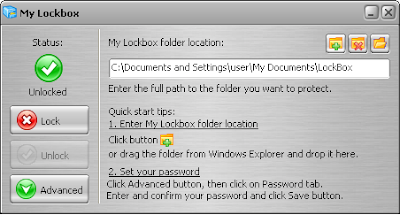
My Lockbox is extremely easy to use. You can set the lockbox location and the password during the setup procedure. After the setup is done, lockbox will be hidden and locked until you enter the valid password. My Lockbox Control Panel allows you easily change basic lockbox parameters: lockbox location, protection status, password.
Download My Lockbox Now | 1.27MB
4. Folder Latch

Download Folder Latch 6.0.0.5 | 1.43MB
5. Microsoft Private Folder
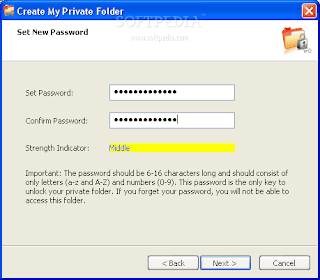
Note : Microsoft Private Folder is provided specifically for genuine Windows customers, and requires genuine Windows validation in order to download.
Download Microsoft Private Folder | 1.06MB
P.S. : Oh yes, don't forget to protect your priceless xxx movies collections. :-)
(Read More...)
Labels:
Freeware,
Tips n Tricks
Other than using
Unlocker , there is another good alternative to eject my USB flash drive with ease and forget about the frustrating moment seeing the error message from Windows' default device removal tool.
 USB Disk Ejector
 is a free Windows application that allow us to quickly eject our USB flash drives and any other USB devices in Windows.
USB Disk Ejector also come in handy when we have a couple of USB devices to remove. I hate the slow normal way to eject my USB device, especially when I have more than one USB devices to remove, I am sure you don't want to waste time on that right?
How to use the USB Disk Ejector?
Get yourselves a copy of USB Disk Ejector. Once downloaded, extract the freeware to your desktop. To eject your USB devices, simply open the USB Disk Ejector and you will see the similar image below. Follow the given instruction as displayed and you're done!

If you have problem to eject your usb gadgets (seeing the error messages) and would love to save time when you have a handful of usb gadgets to eject, you should give USB Disk Ejector a try or else just stick with the usual method. :-)
Credit : MohdHafez.net
(Read More...)
Labels:
Freeware,
Tips n Tricks
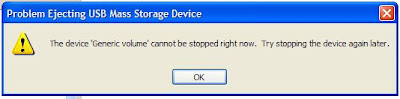
I always have the problem to eject my external hard disk from my laptop. So I already get used to this error message which was kind of annoying sometime.

The solutions that I always used are by unplugging the external hard disk directly even though I get the error message or turn off the computer and unplug it later.
But now I have a better solution to fight this problem. I am using a free Windows application called the
Unlocker, purposely used to delete locked files with error messages.
Other than the above error message, Unlocker also works fine to get rid of the following type of error messages.

and these too :
Cannot delete file: Access is denied
There has been a sharing violation.
The source or destination file may be in use.
The file is in use by another program or user.
Make sure the disk is not full or write-protected and that the file is not currently in use.
How to use the Unlocker?
Once you have the Unlocker installed, simply right click on the file or folder with the error message and click Unlocker. You will see a pop-up dialog box, click Unlock All and you’re done!
Wanna give a try?
Credit : FriedBeef
(Read More...)
Labels:
Freeware,
Tips n Tricks
Previously, I have shown you how to
convert flash movie into a windows-based screensaver by using a free web service, called
Creamshavers. Besides creating your flash based screensavers directly from the web, you also can choose to do it from your desktop. All you need is
InstantStorm.

InstantStorm is a Windows freeware tool for creating Flash based screensavers with many advanced features. All you have to do is to choose a SWF file, set screensaver parameters and compile an executable installer. All 32-bit and 64-bit versions of Microsoft Windows are fully supported, including Windows 95 and Windows Vista. And the best of all—there are no nag screens or other annoying stuff. Unlike many other tools, InstantStorm allows you to fully customize your screensaver's about box, installer and uninstaller including all texts.
Create Your Screensaver in 3 Simple Steps
There are plenty of options to customize your screensaver, but if you choose not to get headache with all the options, you can use the New Project Wizard (most prefer to beginner) and get your screensaver done in 3 simple steps.

Download InstantStorm! | Download Sample Flash Movie
(Read More...)
Labels:
Flash,
Freeware,
Internet,
Tips n Tricks


